
A track queue for music streams
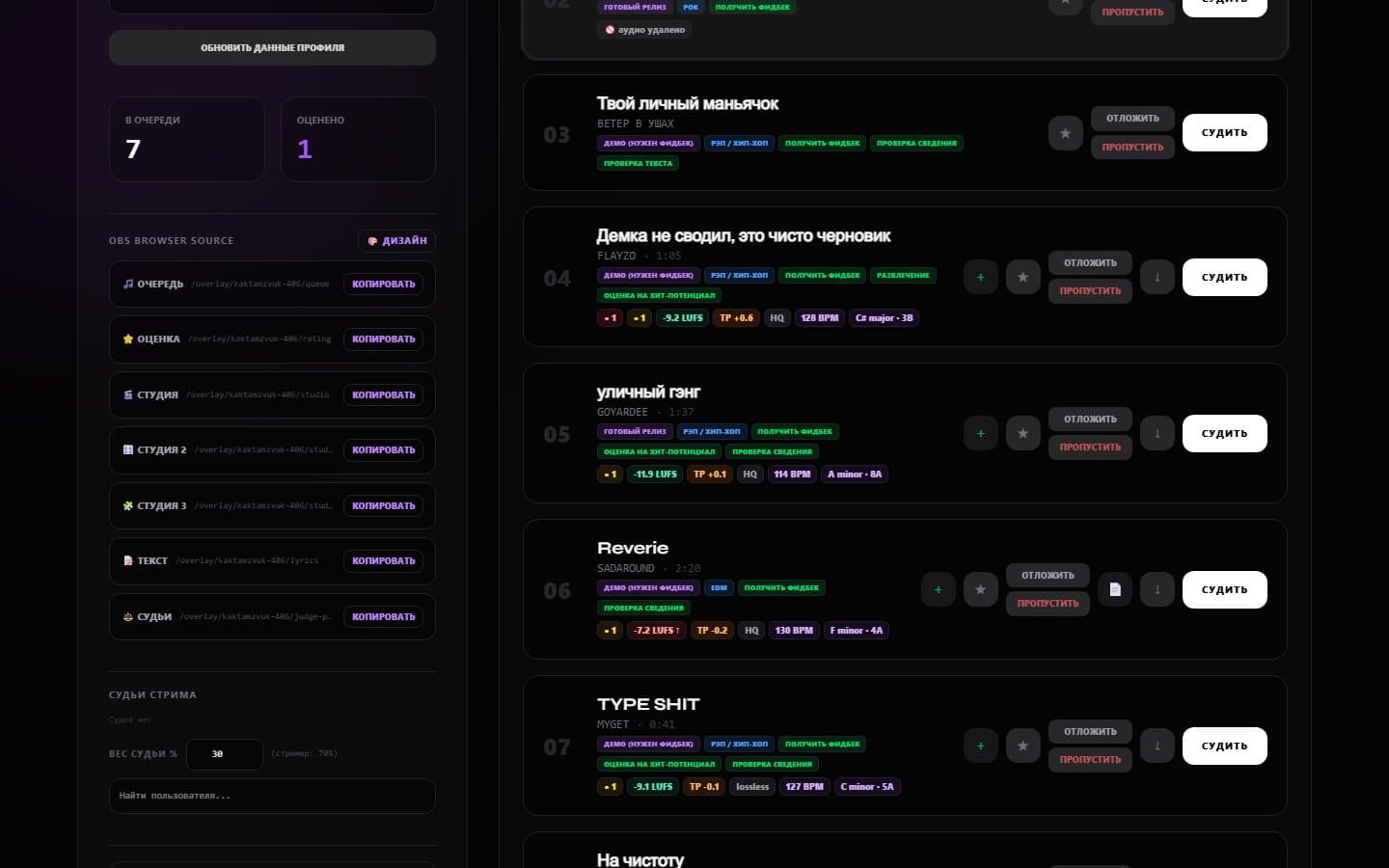
From application to your first stream
- 01
Sign up
Create an account, turn on “I'm a streamer” and add a link to your channel. Once the application is approved, the dashboard opens. - 02
Set up the channel
Rating criteria, free track limits, queue mode, intake rules. The dashboard has a first-stream checklist. - 03
Overlays in OBS
Copy the link of an overlay or a whole scene and add it to OBS as a Browser source of the right size. - 04
Start the stream
Press “Start stream” and give viewers the link to the stream page or the Telegram bot. - 05
Rate live
Listen in the built-in player with loudness matching, score by criteria, the chat votes. - 06
Reports to artists
After “End stream” the bot sends every artist a report: scores, a comment, the audio analysis and a timestamp in the recording.
Everything you need for a track review stream
Analysis of every track
Loudness matching
Intake rules
Copyright check
Criteria and judges
Chat voting
Reports to artists
Channel statistics
Streamers' lounge
Ban list
Auto-pause
Artist history
Donations, priority and services
Donations with automatic confirmation
Queue modes
Channel services
Telegram notifications
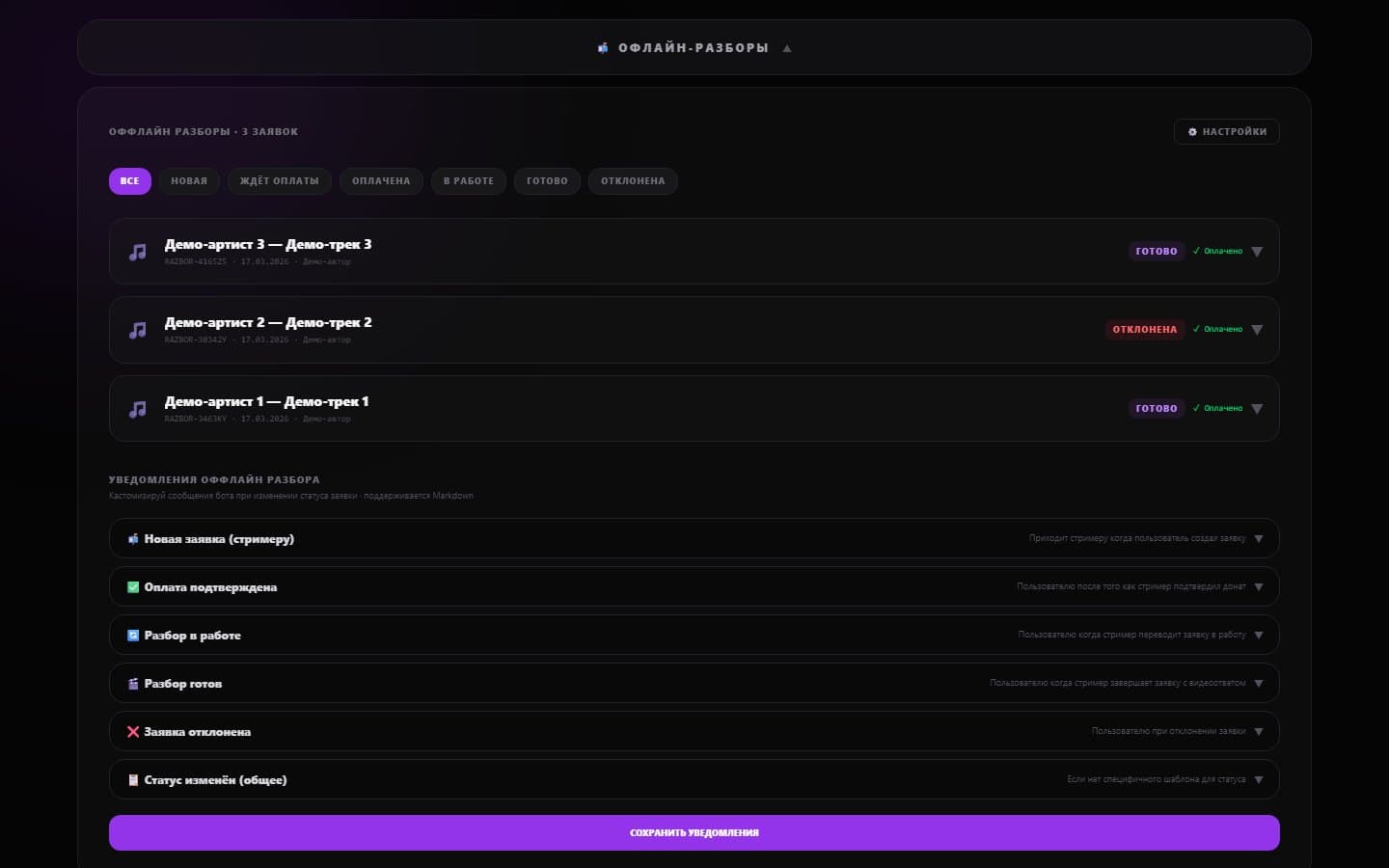
Offline review requests — in the dashboard
Turn on intake, set prices per track and per album and the turnaround time. All requests are listed with statuses, payment and the video reply, and you can rewrite the notifications artists receive.
Overlays for a music stream
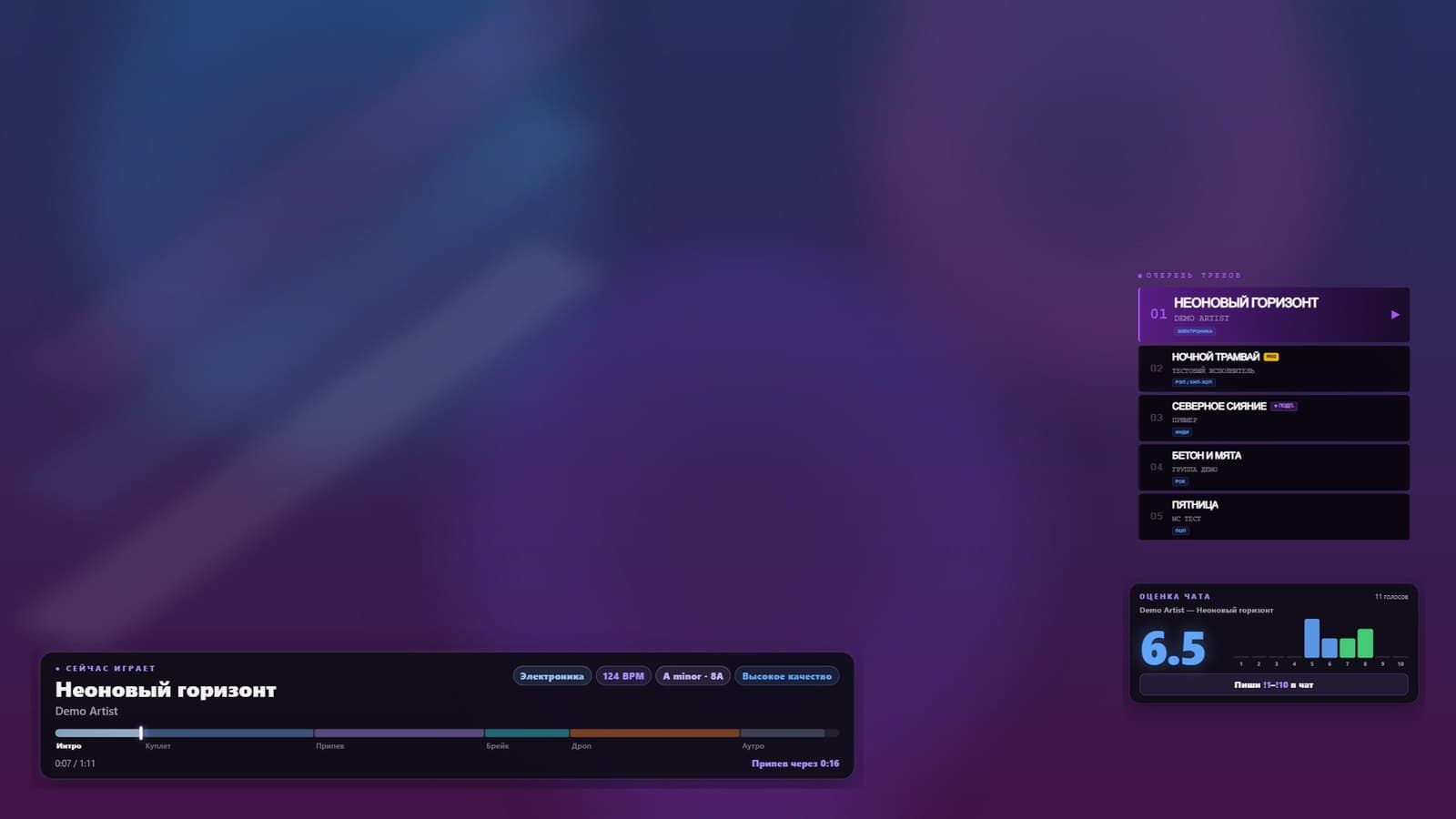
One scene — one source in OBS
Queue, a track card with BPM and key, rating, chat voting, the stream's top, karaoke, a loudness meter, chat and studio scenes.
Arrange widgets with the mouse on a 1920×1080 canvas — OBS needs a single Browser source, and changes appear on stream without a reload.
Taking tracks via a Telegram bot
Every channel has its own bot
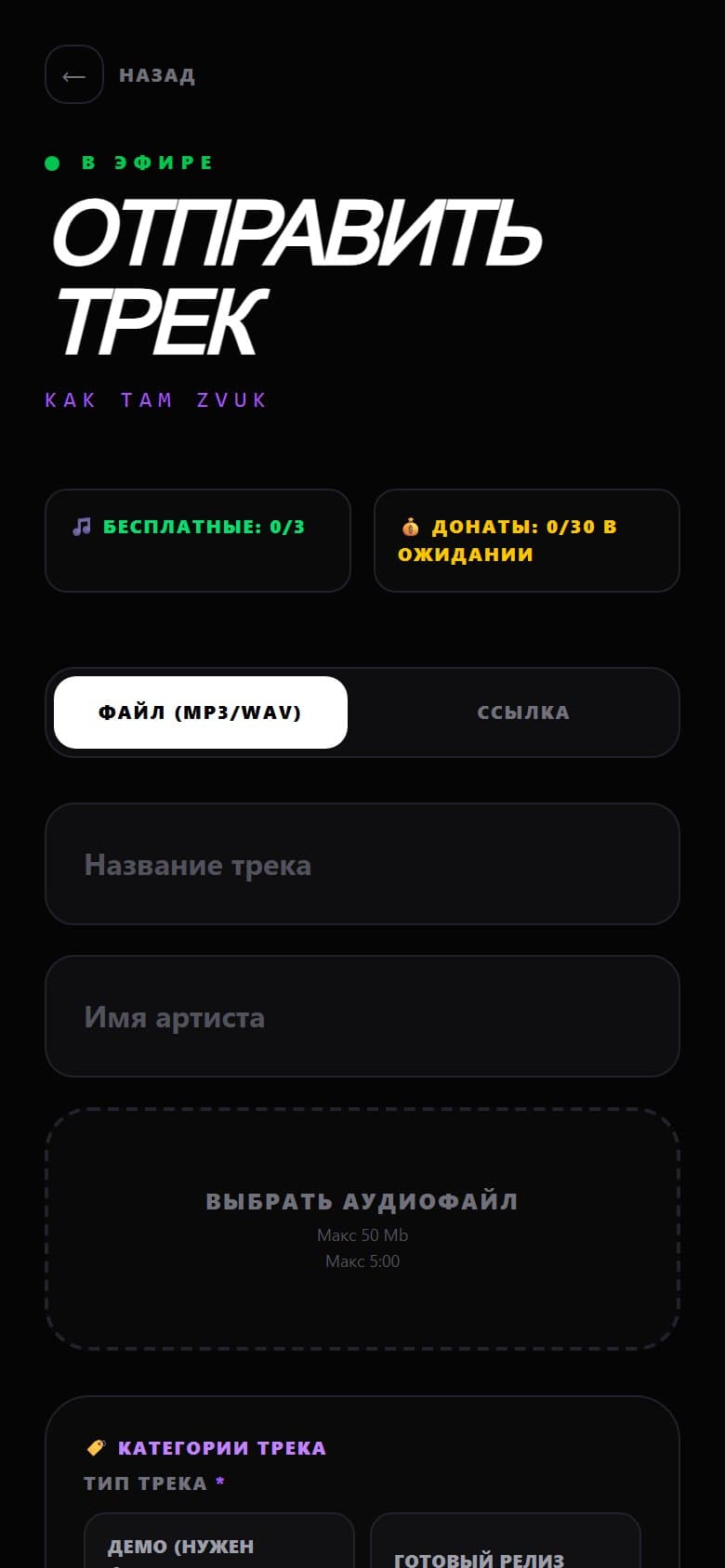
Viewers send a file or a link to the bot, and it asks step by step for the title, genre and what kind of rating they want. The bot tells them their place in the queue, notifies subscribers when the stream starts and sends artists technical feedback and reports.
Create a bot with @BotFather, paste the token into Stream-Q — and you can rewrite every bot message in your channel's style.
Set up in 5 minutes
- 1Fill in the channel: avatar, description, links to your platforms and donations.
- 2Pick rating criteria and a scale, or take a ready-made set for the track type.
- 3Set the free track limit per viewer and the queue mode.
- 4Add a scene or a couple of overlays to OBS and check how they look via the link with demo=1.
- 5Press “Start stream” — the Telegram bot token is optional.
- 6Pin the stream page link in the chat and in the stream description.
Streamers' frequently asked questions
How much does Stream-Q cost for a streamer?
Sign-up is free. Viewers send donations through DonationAlerts directly to you — Stream-Q only checks the code in the donation message to confirm the track.
Which platforms does it work with?
Twitch, VK Video Live, YouTube and any others: the queue and overlays are web pages you add to OBS as a Browser source. Voting with !1–!10 works in Twitch chat, and in YouTube and VK chats — via the Stream-Q chat extension.
Do I have to connect a Telegram bot?
No. You can start a stream and take tracks only through the stream page on the website. The bot adds intake via Telegram, stream start notifications, audience judging, technical feedback for artists and the “Guess the score” game.
How do viewers send tracks?
Through the stream page on the website or the channel's Telegram bot: as a file (MP3, WAV, FLAC, OGG, M4A and others) or a link. YouTube and SoundCloud links are downloaded automatically, links to streaming services are kept as links.
What if a viewer sends someone else's released track?
After analysis every file is checked by audio fingerprint against a database of released recordings. If someone else's release is found, the queue shows a “© Release found” badge. Intake rules can hold such tracks back automatically. The check lowers the risk but doesn't guarantee every release will be found.
Why does a streamer account need an application?
When signing up, turn on “I'm a streamer” and add a link to your channel — an administrator reviews the application, and after approval the streamer dashboard opens. That way the directory only lists real channels.
Does the site work from Russia without a VPN?
Yes. If the main address is unavailable, use the mirror ru.stream-q.com.