
Send your track to a streamer for a review
Five steps from a track to a review
- 01
Find a streamer
The “Live” block on the home page shows who is taking tracks right now. The streamer directory has a genre filter. - 02
Prepare the file
Check loudness, peaks and file quality in the free analyzer, label the version, attach the lyrics. - 03
Send the track
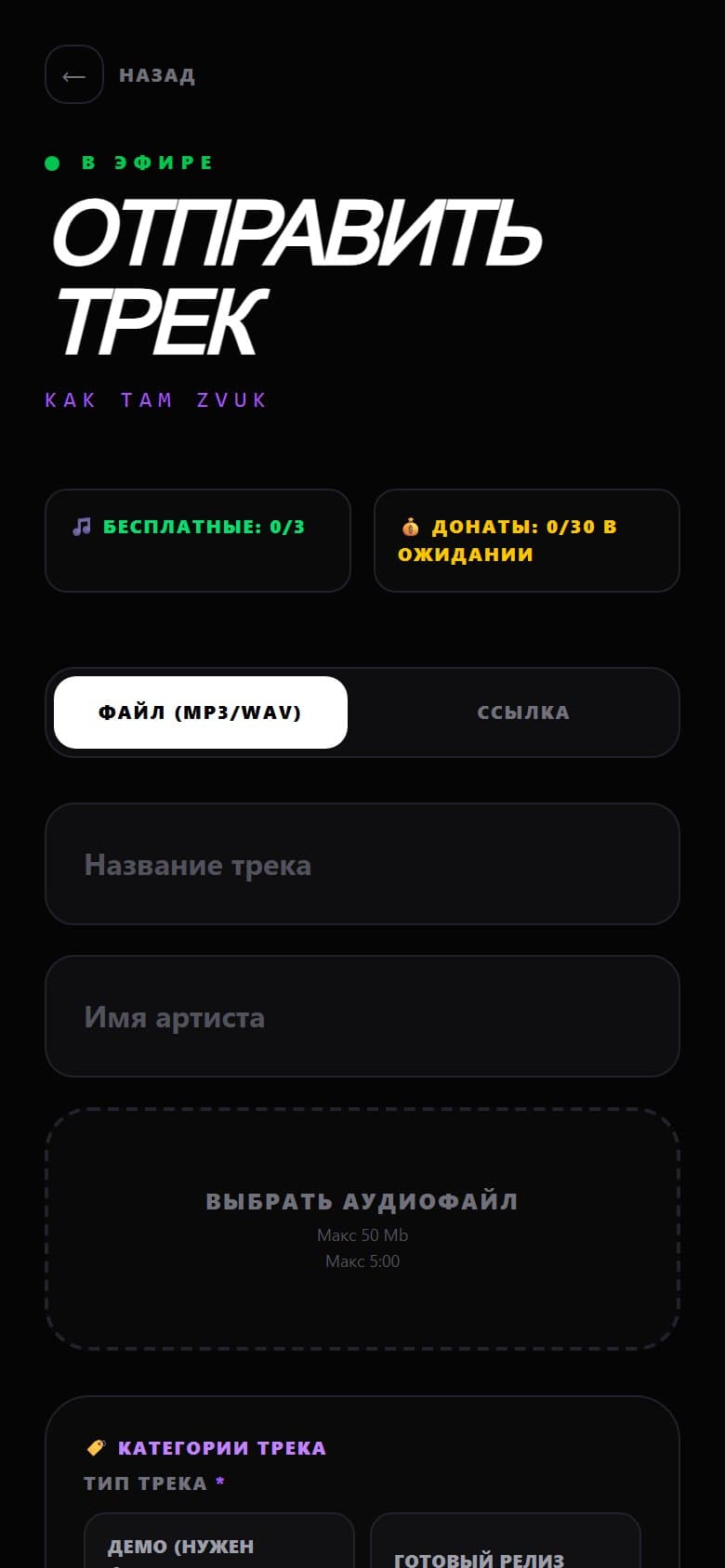
Through the stream page or the channel's Telegram bot: title, track type, genre and up to three things you want feedback on. - 04
Follow the queue
The stream page shows your place and the approximate time. The bot messages you when you're next. - 05
Get the report
After the stream — scores by criteria, the streamer's comment, judges' and chat votes, a sound analysis and the moment in the recording.
How to find a streamer who is listening to tracks right now
Directory and live streams
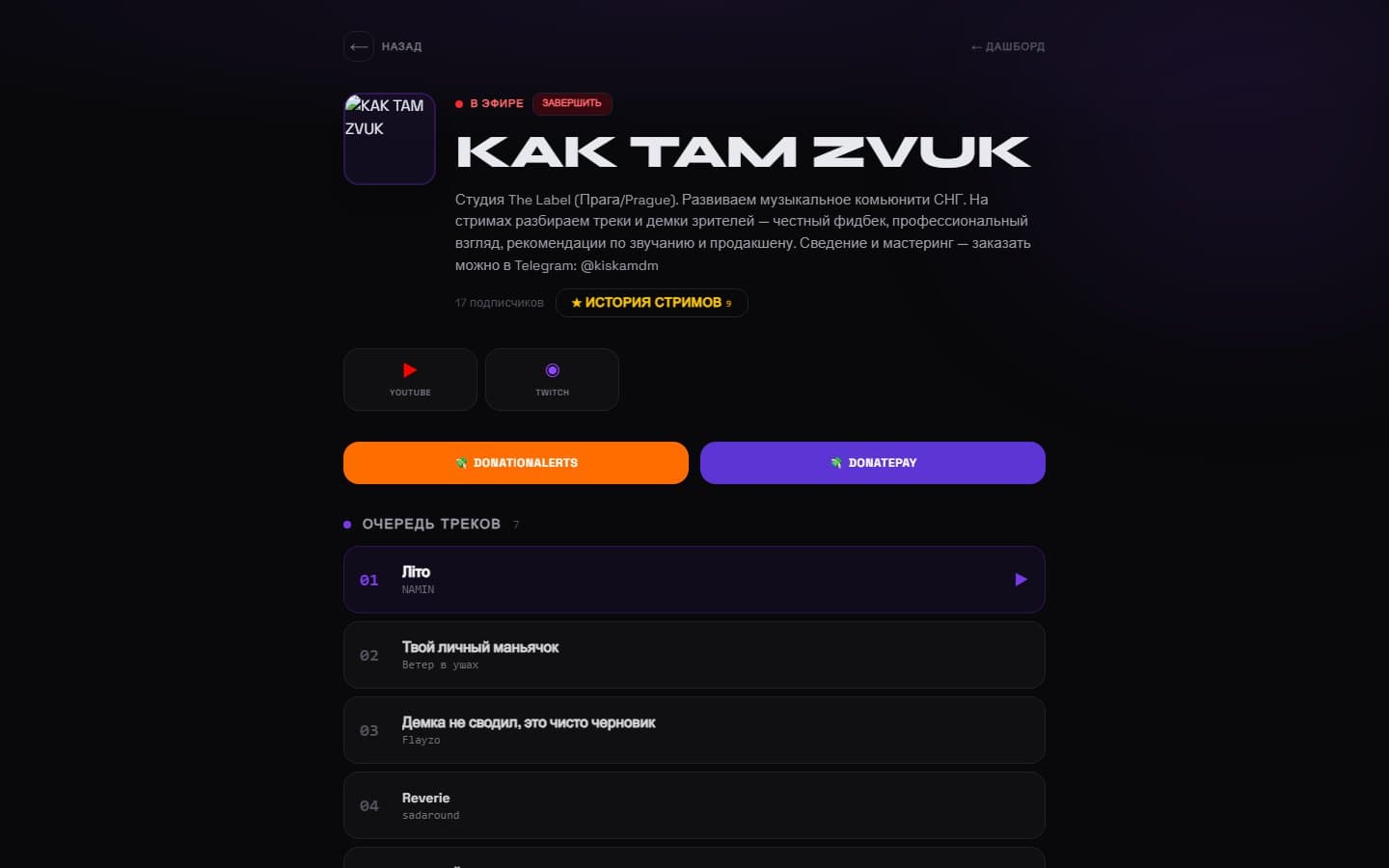
The home page shows channels taking tracks right now, with the first tracks in their queues. In Streamers you can search by name, filter by genre and show only those who are live.
Subscribe to a channel — the bot will notify you when the streamer goes live. The stream history on the channel page shows which tracks were played and how they were rated: that makes it easier to see whether the format suits you.
Prepare your track so the review is about the music
Loudness and peaks
File quality
Title and lyrics
What you get after the stream
Scores by criteria
Judges and viewers
Loudness and dynamics
Comparison with the genre
Tempo, key, quality
The moment in the recording
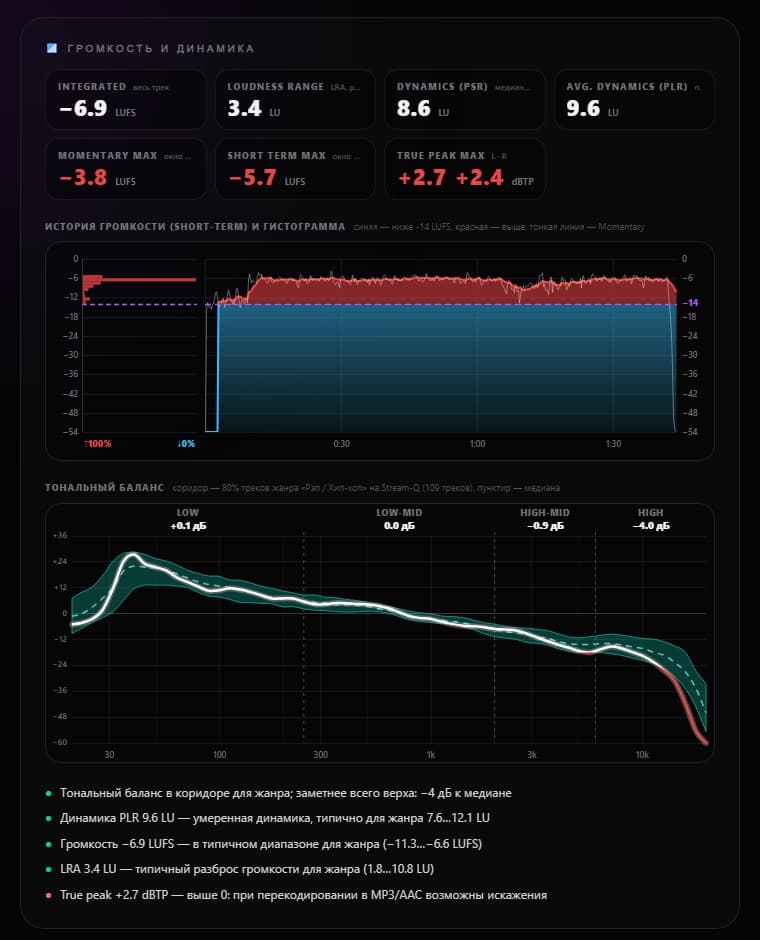
Loudness and dynamics — like iZotope Insight
The same numbers professional meters show, with clear conclusions: for example, “the lows are 4 dB louder than typical for the genre” or “PLR dynamics of 6 LU — a dense master”.
You also see by how many decibels Spotify and other platforms will change the track's volume.
Technical feedback before the stream
Version comparison
Portfolio and charts
Portfolio
Charts and seasons
Offline reviews and services
Notes — bonuses for activity
Notes are the site's bonus currency. Details, your balance and referral link are on the Notes page.
- Earn them for tracks rated on streams, places in the top and friends you invite.
- Spend them on promoting a track in “Discoveries of the week”, profile styling and skipping the queue — if the streamer allows it on their channel.
- Notes can't be bought for money or withdrawn: they reward activity, they are not a means of payment.
Artists' frequently asked questions
How much does it cost to send a track?
Sign-up on Stream-Q is free. Most streamers take tracks for free within a per-stream limit, and a donation can move a track to the front of the queue — each streamer sets their own terms, shown above the submission form.
What format should I send?
Preferably a file: WAV, FLAC or MP3 320 kbps exported straight from the project. The sound analysis works on the file, and the streamer hears exactly what you sent. YouTube and SoundCloud links are downloaded automatically; links to streaming services are kept as links and aren't analyzed.
Who will hear my track?
A submitted track is heard by you, the streamer and the channel's subscribers. Without signing in, only the stream's best tracks are available.
Can I send a track without Telegram?
Yes, through the stream page on the website. Telegram is useful because the channel's bot sends technical feedback right after the analysis and a link to the report after the stream. For this to work with tracks sent from the website, link Telegram with the /connect command in the bot.
What if my track wasn't played in time?
If the streamer didn't get to it before the stream ended, the track stays unrated. The report on a played track and your full submission history are in your profile under “My tracks”.
What are Notes?
Notes are Stream-Q's bonus currency. You earn them for tracks rated on streams, places in the top, season wins and invited friends, and spend them on promotion in “Discoveries of the week”, profile styling and skipping the queue if the streamer allows it. Notes can't be bought or withdrawn. Balance and rules are on the /notes page.